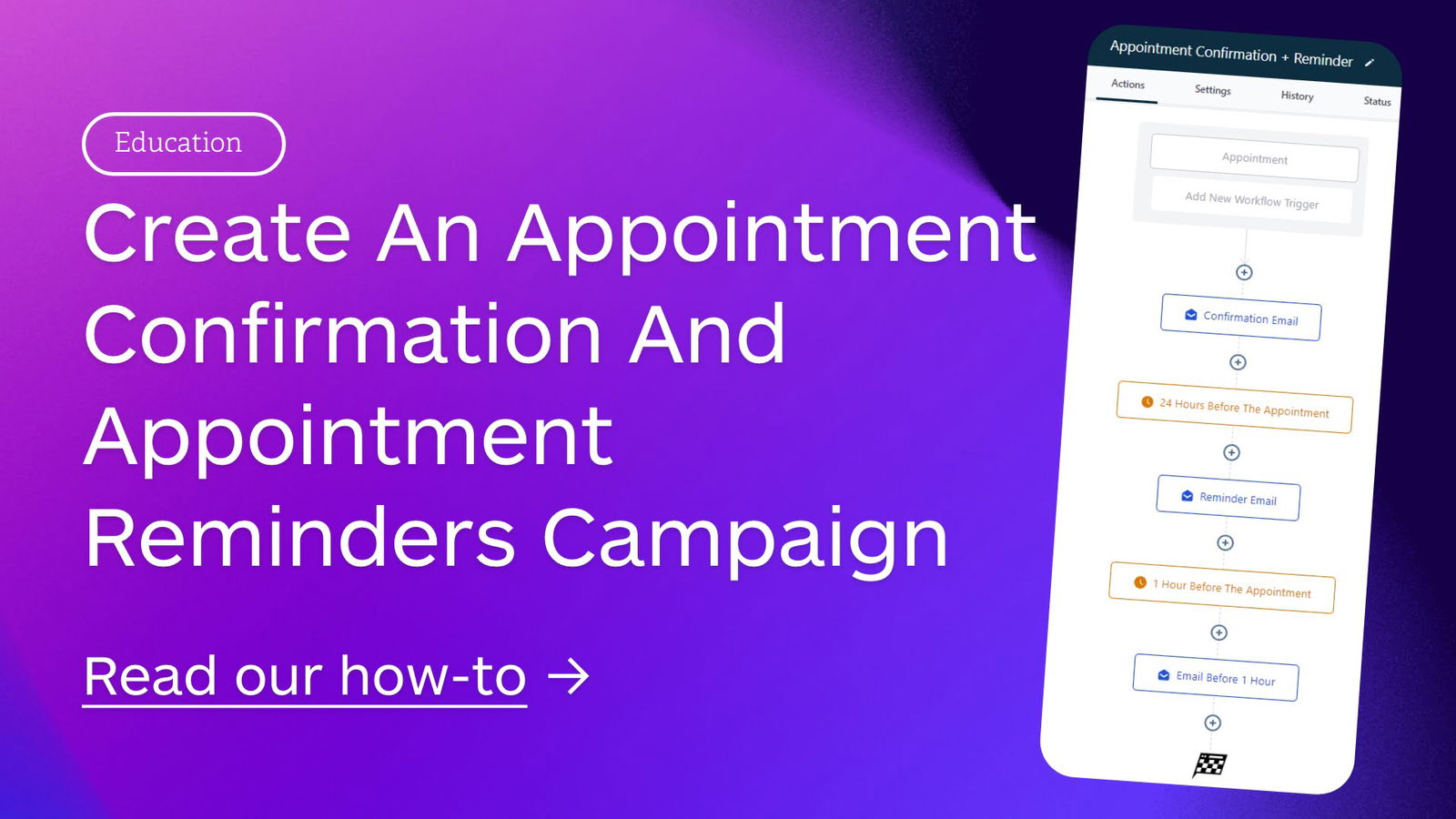
How to create an appointment confirmation and appointment reminders campaign in Glowedge.

appointment reminder

Create the Appointment Confirmation Campaign in Glowedge

  • Navigate to Campaigns and create a campaign.
  • If you want a Confirmation Step (optional), add an email/SMS/messenger event confirming the appointment, sending it immediately.
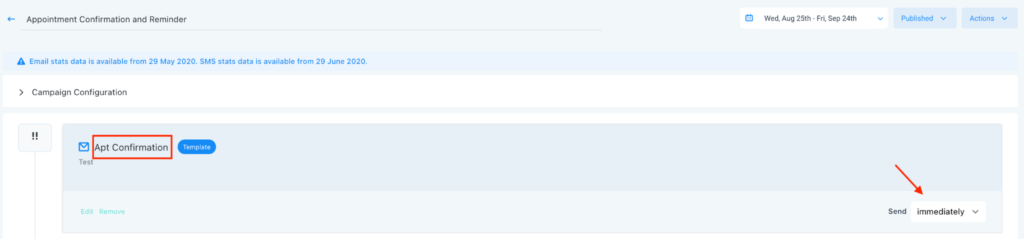
screen shot 2021 09 24 at 6.43.16 am
  • Facebook
  • Twitter
  • Pinterest
  • LinkedIn
  • Next, create reminder events. Use the “before” setting so the event sends X hours/days/minutes before the appointment.
    • For example, an email 48 hours before will send 48 hours before the scheduled time. This setup can be used for both SMS and email reminders within the same campaign.
  • To ensure reminders continue even if the lead responds, toggle off the “Stop on response” in Campaign Configuration.
    • This prevents halting reminders when a lead confirms the appointment.
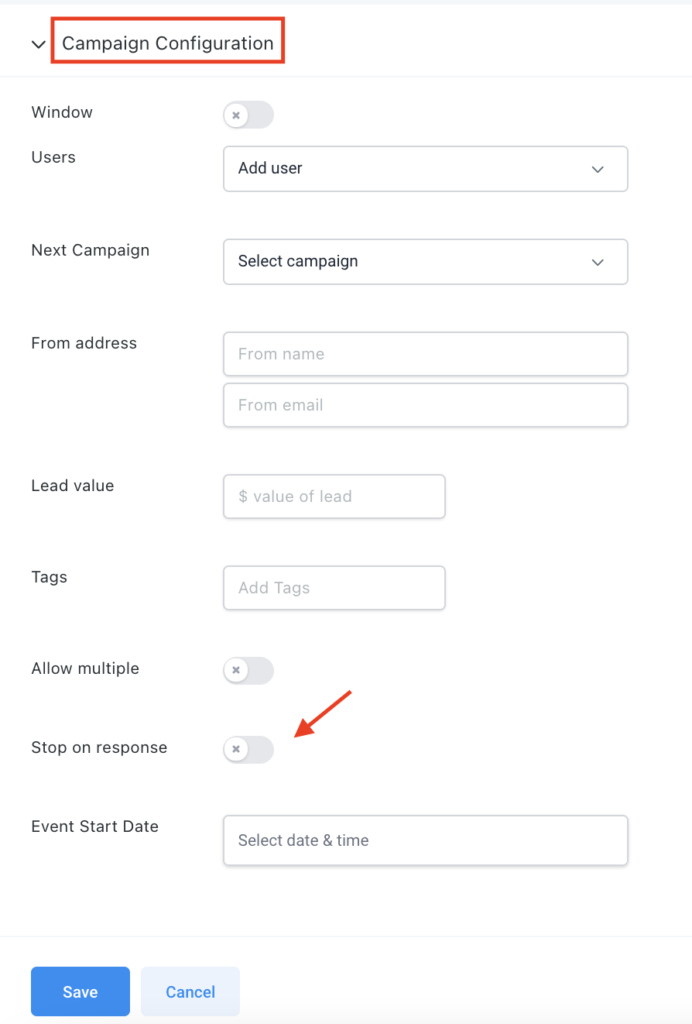
screen shot 2021 09 24 at 6.44.34 am
  • Facebook
  • Twitter
  • Pinterest
  • LinkedIn

After finishing, publish the campaign.

Note: To add a one-off lead to the confirmation and reminder campaign, do so in the Conversations or Contacts section. Ensure the appointment is booked before adding them to the campaign by clicking the +Add icon.


Related articles

Getting started with Glowedge!

Getting started with Glowedge!

A Step-by-Step Guide In today's competitive business environment, an efficient marketing and CRM platform is crucial. Glowedge offers a comprehensive solution with its powerful features and intuitive interface. This guide will help you get started with Glowedge,...

read more

Rick Timmermans

August 11, 2024
Tags:

Support

Need help or do you have a question? Open our chat widget in the bottom right corner or send us a email on support@glowedge.io

Rather Not Do It Yourself? Let Us Handle It.

Let’s start
Glow your Business

Discover What Glowedge Can Do For You & Your Business

No obligations, no contracts, cancel at any time

Pin It on Pinterest

Share This