The 6 key pillars of the Conversation AI Bot are:
- Conversation AI Modes and settings
- Supported conversation channels
- Training the Bot
- Configuring Bot’s Intent
- Testing the Bot (Bot Trial)
- Workflow X Conversation AI
In This Article
- Conversation AI Modes and settings
- Supported conversation channels
- Training the Bot
- Configuring Bot’s Intent
- Testing the Bot(Bot Trial)
- Workflow X Conversation AI
Conversation AI Modes and settings
The Conversation AI bot has 3 modes for you:
- OFF – This is the default mode where the conversation AI feature is inactive. Bot training and bot trial are still active to train and test the bot before launching the bot
- Suggestive – The bot responses are available inside the message composer box to send as is or edit before sending.
- Auto-pilot – The bot automatically responds to a contact on behalf of the business.
Supported conversation channels
The bot currently supports the following channels:
- SMS
- FB
- IG
- Web Chat (SMS Chat)
- Live Chat
- GBP (Google Business Profile)
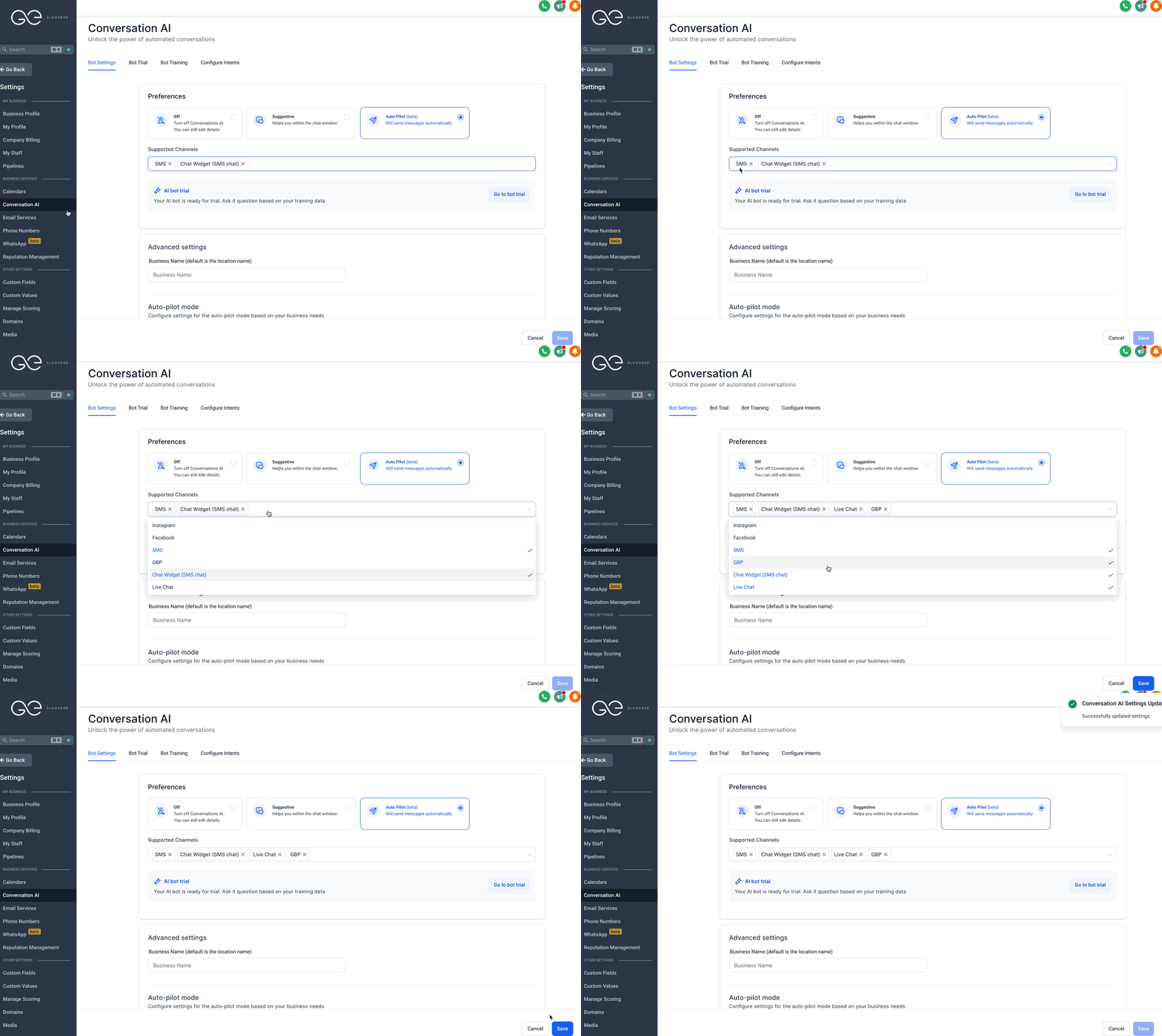
You can select which channels you’d like the bot to communicate through by going to “Settings” > “Conversation AI” and adding the channels via the “Supported Channels” dropdown:
Training the Bot
There are 2 ways to train your bot in the “Bot Training” section of the Conversation AI settings page in your settings:
- Through web URLs and public links
- Adding Question and Answer pairs
Note: Bot training is free of cost
Configuring Bot’s Intent
Currently, there are 2 intents supported by the bot:
- General Support or Q/A – Provides information to the contact’s queries based on the training information
- Appointment Booking – Ask a few questions (customizable) and then book an appointment on the calendar.
Note: If an appointment for a contact is already booked ie in the Active/Confirmer state, the intent will dynamically switch to General support for that contact till the appointment is either completed or cancelled
Testing the Bot (Bot Trial)
- The Conversation AI bot is FREE to test in the “Bot Trial” tab of your Conversation AI settings page.
- The intent to test can be selected from the dropdown and the bot will respond to you the same way it will respond to a contact
- Feedback can be provided by using the “Thumbs Up and Down” under each bot’s response to fine-tune and add FaQs to be trained
Workflow X Conversation AI
Utilize the power of your bot training within workflows by using the Conversation AI Action following:
- Customization your entire prompt
- Conditional movement of the contact within the workflow
- Ask specific questions and create branches based on the contact’s reply